


Remove the background from product photos
Cut the product out of any photo, then put it on transparent, white, a brand colour, an image of your own or a new AI background — for one image or a whole batch.
On the Free plan · 600 credits / day · no credit card
Cut out, then choose the ground
Epox cuts the product out. You choose what goes behind it.
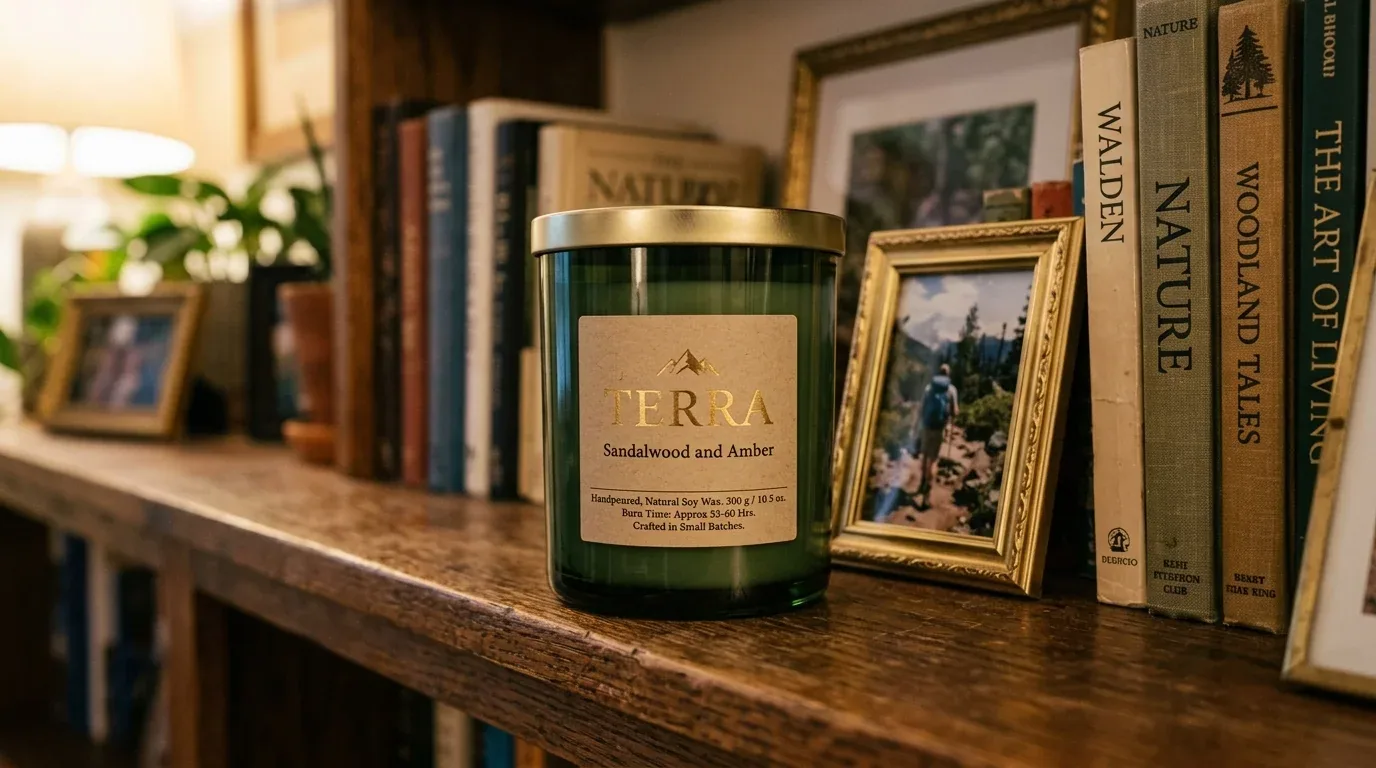
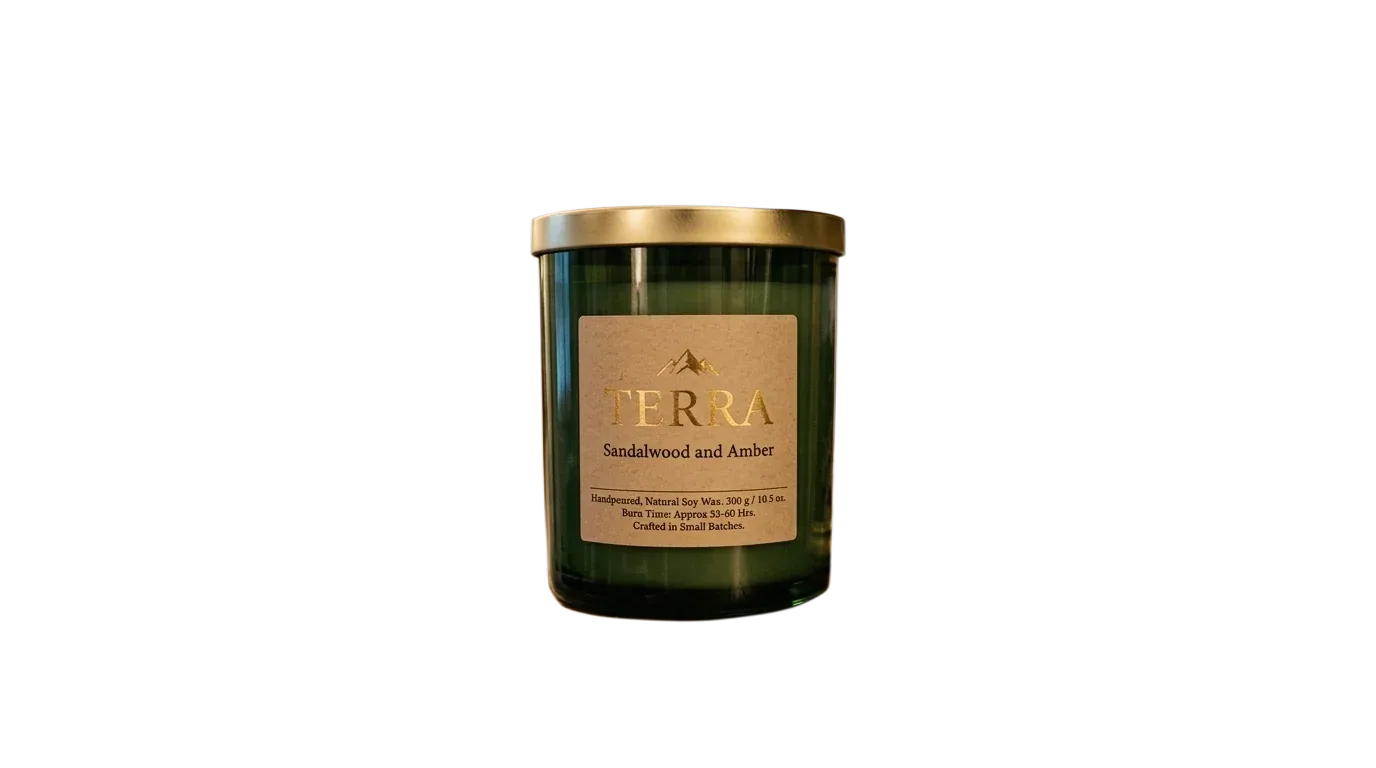
Generated in Epox from the product photo
Any ground you need
Transparent, white, black or any colour, gradients and textures, an image you upload — or a background generated from a prompt.
Keep the shadow
A Keep shadow toggle holds on to the product’s own shadow, so it sits on the new ground instead of floating.
The same cut on every image
Run it on a batch, so a supplier feed of mixed backgrounds comes back on one consistent ground.
Three steps, one image or a hundred
- 01
Pick the images
One image, a whole product, or a selection from your library — every tool runs on many images at once.
- 02
Choose the new background
A colour, an uploaded image, or a prompt for an AI background — with the product’s shadow kept or dropped.
- 03
Keep, download or sync
Download the results, or stage them on the product page in Shopify or WooCommerce and approve before they go live.
Remove background questions
The rest of Edit & standardize

Every product on the same ground.
Open the tool, select your images, pick the background.
Open Remove background in EpoxOn the Free plan · 600 credits / day · no credit card