Before · 5 supplier photos

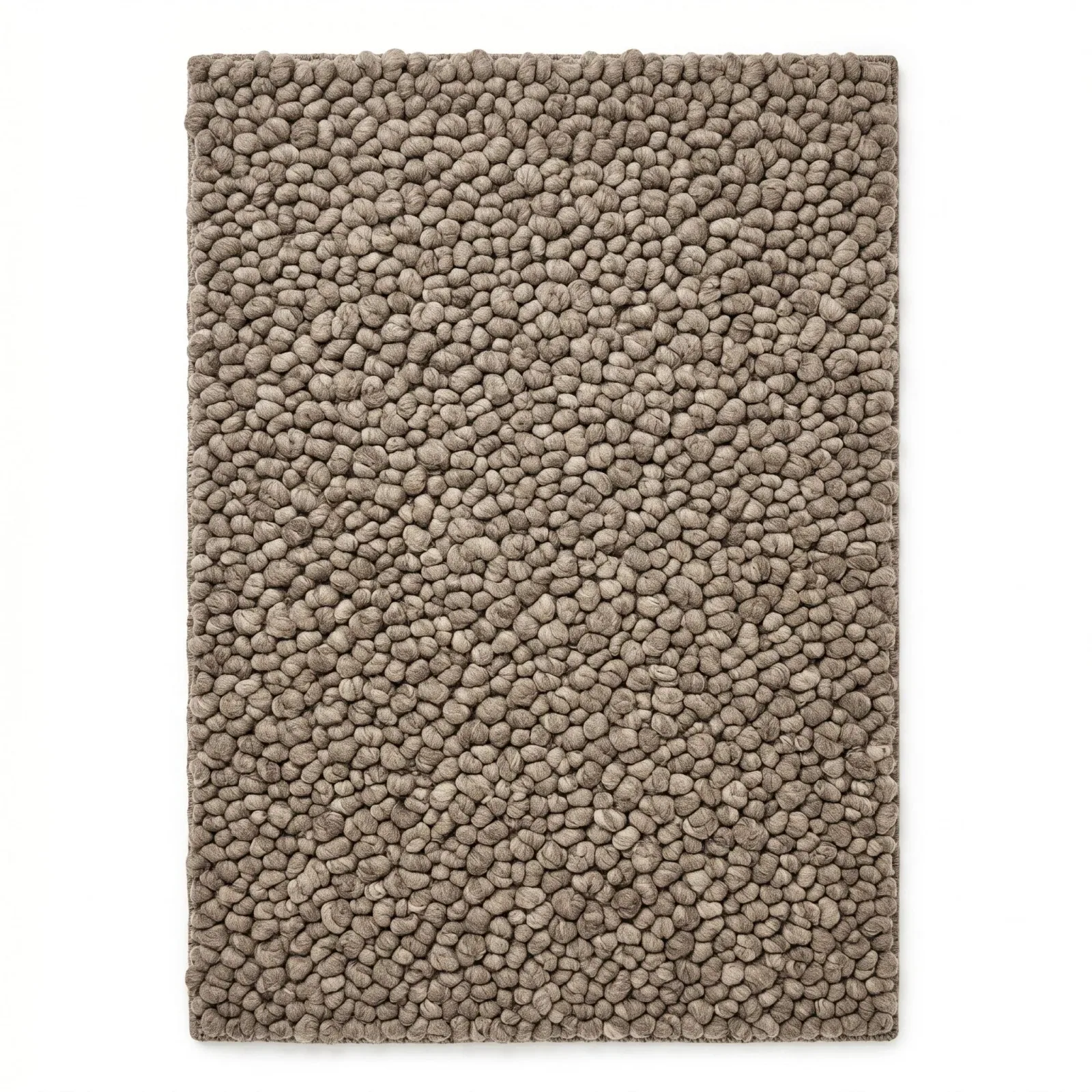
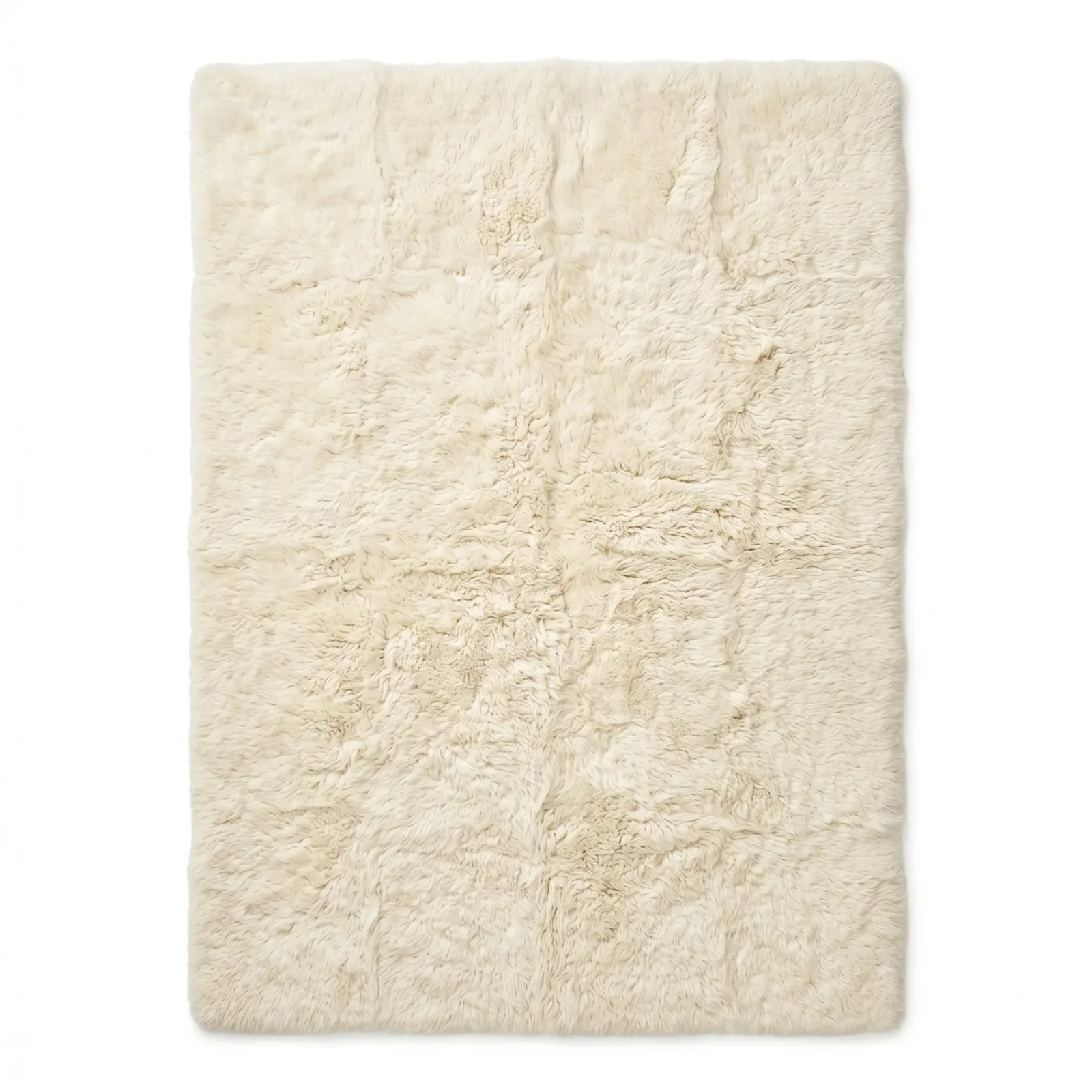


After · one look, generated in Epox

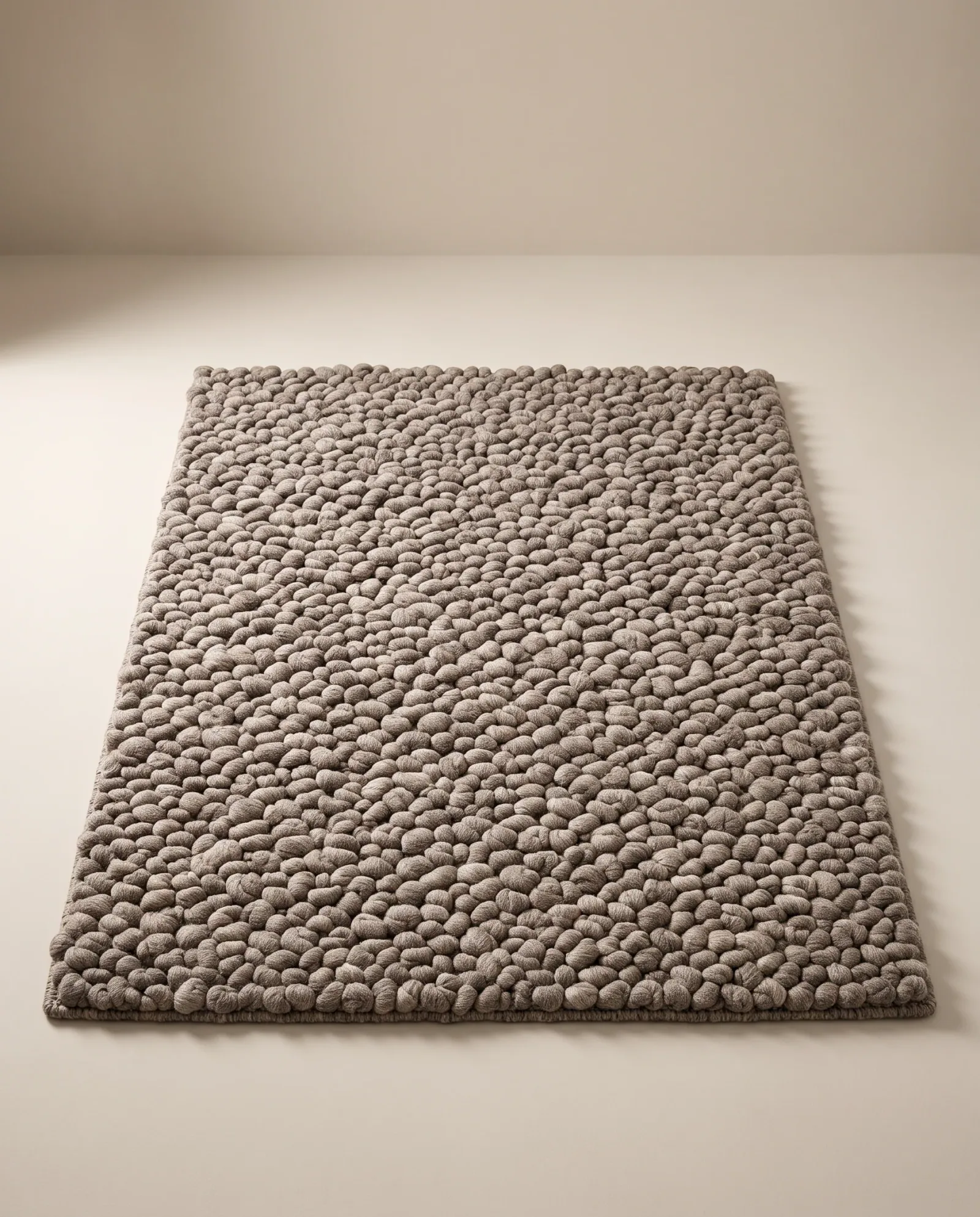



Standardize any product asset, on-brand, at scale.
Clean up supplier files, cut backgrounds, reframe, upscale, and edit with plain language — every asset consistent, every product ready to publish.
600 credits / day · no credit cardTurn messy supplier files into a clean, consistent catalog.
Set the edit once. Apply it to everything.
Chain background removal, reframe, upscale, and adjustments into one recipe. Every setting Epoxy would make, you can make instead — then reuse it on every asset.
Save the chain as a template. Run it across your whole catalog.
Open Edit Studio →




Clean cutouts, in one click.
Drop in a messy supplier photo and get a crisp, edge-accurate cutout on a clean background — no manual masking, no halos.
Neutral studio white, transparent PNG, or straight into a generated scene.
Open Edit Studio →Give every cutout a real shadow.
A cutout with no shadow looks pasted on. Add a ground shadow anchored to the surface, or a float shadow that lifts the product — soft, normal or strong.
Save it in a template and every cutout in the catalog gets the same shadow.
Open Edit Studio →




One photo in. Every angle out.
Start from a single product photo and fill a 360° set — front, back, both profiles and top-down, plus the diagonal ¾ views when you need them. Each angle renders from the same front-view anchor, so the set holds together.
Need one more viewpoint? The Angle tool lets you drag the camera and re-render a single shot.
Add a product →One photo. Every format.
Take a square shot to a 9:16 story or a 21:9 banner. Reframe and Expand grow the frame and paint in the background — here the wall and plinth — so the product keeps its place instead of being cropped.
Set the aspect, padding and scale once — every product gets the same framing.
Open Edit Studio →




Lift any asset to 2K or 4K.
Rescue low-resolution supplier files and old product shots — Epox rebuilds detail and edges so every asset holds up on a retina PDP or a print spread.
No soft edges, no artifacts. Just a sharper version of the same shot.
Open Edit Studio →Edit with plain language.
Tell Epoxy what to change — swap the background, brighten the light, remove a distraction, change the surface — and it makes the edit while keeping the product untouched.
No layers, no masks, no tools to learn. Describe it, and it's done.
Open Edit Studio →

Five products. One look.
Supplier photos arrive on different backgrounds, at different scales, in different light. Run them through one look and they come back as a set — same backdrop, same light, same scale.
Shown: five products, each made in Epox from its own product photo.


Chain edits into a template.
A template is a saved chain of edits — remove background, reframe, upscale, adjust — locked in and reusable. Build it once, apply the exact same treatment to every asset.
Your chains, your look. Consistent from the first SKU to the last.
Browse templates →Standardize your whole catalog at once.
Point Epox at your product feed and run an edit chain across every asset in one job. Every product comes back cleaned, reframed, and consistent.
From a folder of mismatched supplier files to a publish-ready catalog, in one run.
Import your products →